
Reviews · Gaming
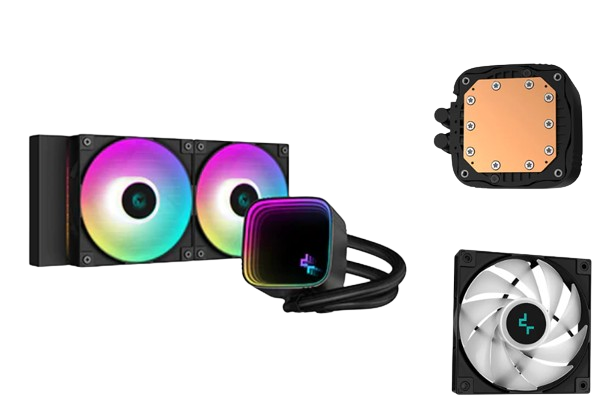
Review: DeepCool LS520 SE 240mm ARGB AIO
Maurice De Pauw · February 14, 2024
Introduction
Here we go! I used to be somewhat against liquid cooling systems. Why? I think it mainly came down to the possibility of leaks. Too much risk, perhaps? After 20 years, I finally decided to give it a try. Not with a high-end liquid cooling system, admittedly, but I did look carefully for something affordable and good. I settled on the DeepCool S520 SE with 240mm fans. I had done some research beforehand, taking my case, CPU and socket into account. It also happened to be Black Friday, so picking up a discount certainly didn't hurt. Despite my doubts, I bought one and went for it.
In this article, I'll share my experience of installing a liquid cooling system and, more importantly, the results it delivers. The system listed below was running with an Intel stock cooler. Yes, I know that's not exactly ideal, but at the time I wanted to get a system up and running quickly and figured I would buy a cooler later. The stock cooler made so much noise when playing a demanding game that it eventually started driving me a little crazy. That's what prompted me to buy the DeepCool LS520 SE.
My system specifications:
CPU: i7-12700F
Memory: 32GB
Motherboard: Gigabyte AERO G
GPU: RX 6600GT
The CPU would easily hit 70 degrees, often even higher, when playing a demanding game. That wasn't exactly a good sign, and I really should have looked for another solution sooner.
Right! Let's get started…..
DeepCool LS520 SE 240mm ARGB AIO Specifications
Key specifications:
Compatibility: Intel: LGA115X/1200/1700 AMD: AM4/AM5
Dimensions: 282×120×27mm (L×W×H)
Radiator material: Aluminium
Tube length: 410mm
Pump speed: 3100RPM +/-10%
Pump noise: 19dB(A)
Pump connector: 3-pin
Pump power consumption: 4.56W
LED connector: 3-pin (+5V-D-G)
In the Box
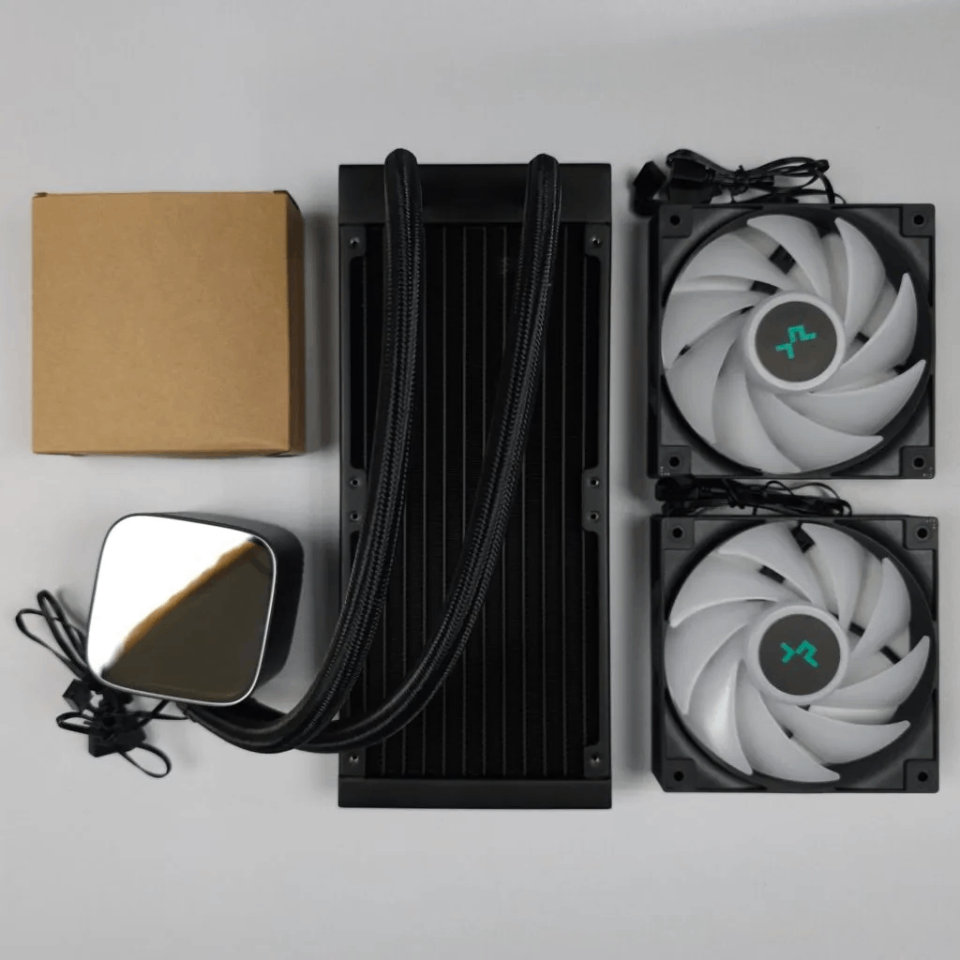
The box contains the following:
LS520 SE AIO
2x 120x25mm ARGB fans
2x low noise adapters
1x fan extension cable
mounting brackets for Intel/AMD and user manuals.
First Impressions
I was pleasantly surprised when unboxing it. Everything felt well made, and having most of the system already assembled was a welcome convenience. It was all securely packaged and immediately got me excited to install it. No complaints so far!
Fitting and Installation
Since I already had a system with an Intel stock cooler, I had to take everything out to install the socket brackets. It would have been much easier if I were building a completely new system. On the other hand, I'm enough of an enthusiast to enjoy taking everything out, cleaning it and making a fresh start of sorts. To give you an idea of my system, see the picture below.
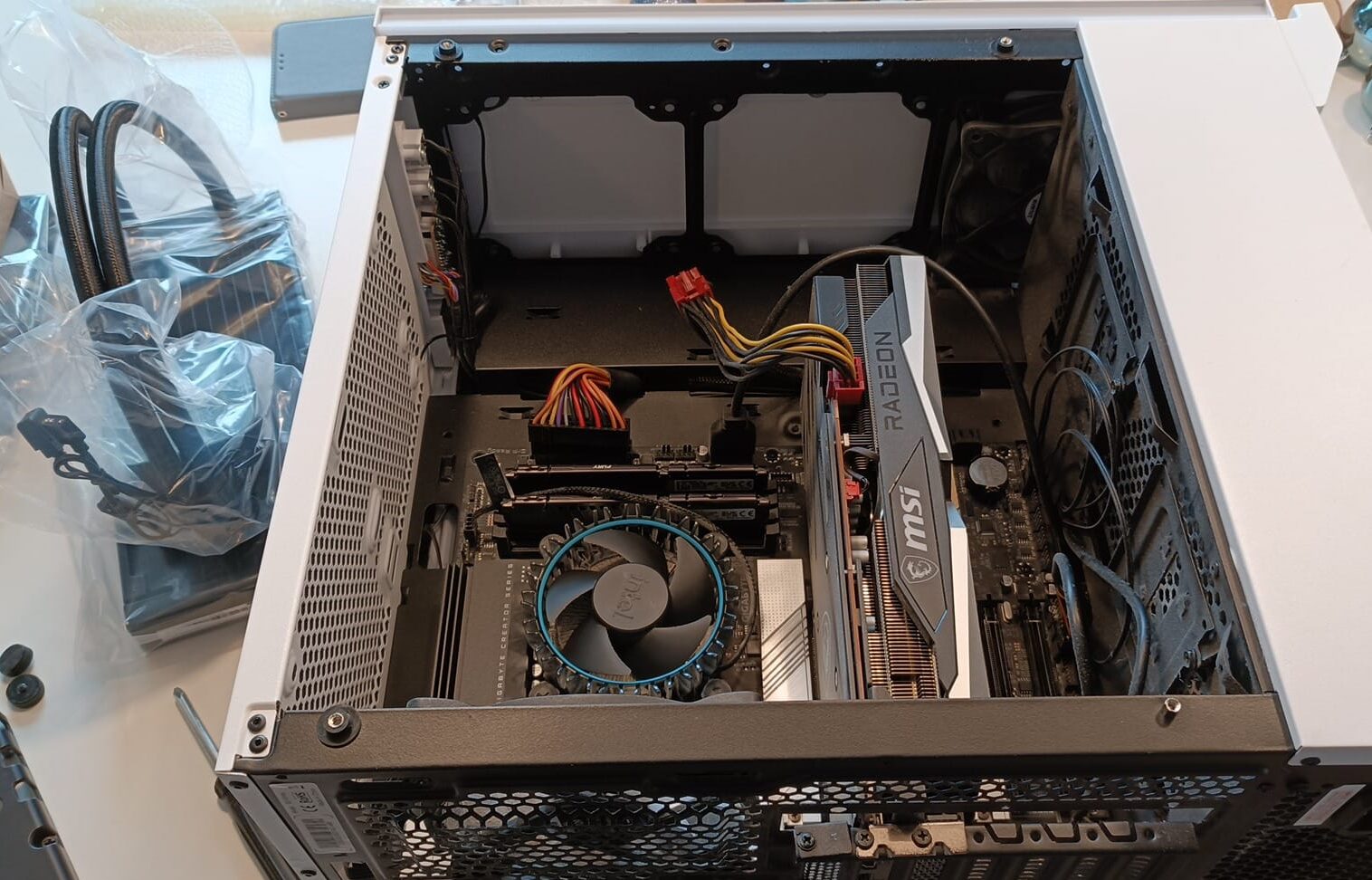
Here you can see the lovely Intel stock cooler, for what it was worth! This is the cooler that makes an enormous amount of noise when you really put the system to work. It was so loud that during a round of Cod: MW2, I had to turn up my headset volume quite a bit just to hear the game instead of the cooler. Needless to say, I was really looking forward to a much quieter CPU cooler.
You'll also notice that I haven't installed any front fans yet, as I'm still not sure whether they will actually be necessary. Time will tell…
Next came installing the fans and radiator. This is a fairly straightforward process: follow the manual to make sure everything goes smoothly. There are two points here that you really need to keep in mind.
Let's start with the fans, which need to be mounted on the radiator in a specific orientation. That makes sense, since the airflow needs to be correct, but I didn't find this particularly clear in the manual. I had to look twice to work out how to do it. You also need to connect the fans to each other using the supplied fan cables, then connect them to your motherboard. Check everything carefully to avoid an incorrect connection that could potentially damage something. Don't worry, it is covered in the manual, but take a close look at both the instructions and the supplied cables. That will make it clearer how to connect the fans to each other and then to your motherboard.
Also check whether your motherboard has a dedicated water pump header. My Gigabyte Aero motherboard already has this connector. Oh, and don't forget to check whether your case supports liquid cooling!
RGB (ARGB) Lighting
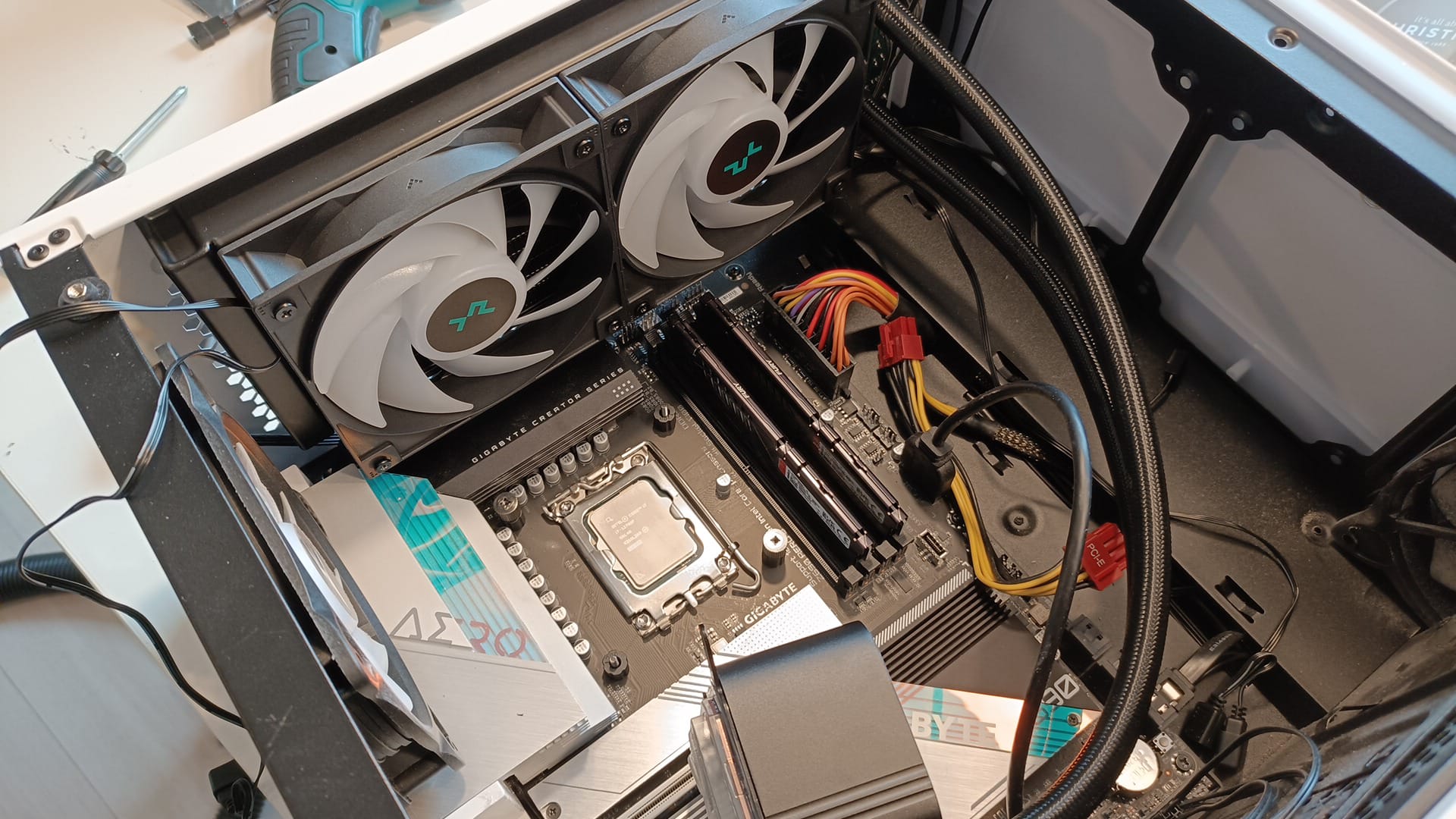
Let's touch on the lighting, too. Not everyone likes having lights throughout their case, but I have to say there's something appealing about coordinating all your LED lighting, especially if you have a glass side panel. But what exactly is RGB (ARGB) lighting? To clarify:
These are the liquid cooling system's individual LEDs, which can be controlled separately. This offers a high level of customisation and control over lighting effects. You can set different colours, patterns and effects through software or external controllers, allowing you to personalise your PC and synchronise it with other RGB components.
Time to Test…
Everything is now installed, and I'd say the process took a good two hours. The result is worth it, though: it looks sleek. I was still a little nervous about whether it would work properly. Installing liquid cooling for the first time leaves you hoping that nothing leaks and that the pump actually works. As I said in the introduction, I would never have done this 20 years ago.
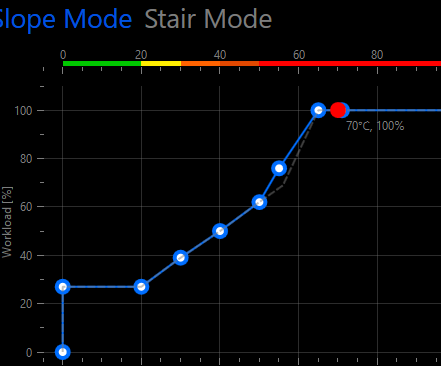
I powered up the system, naturally eager to see whether everything worked properly. One downside was that I really struggled to find software that would let me monitor and tune the liquid cooler. I expected DeepCool to offer something, but I still haven't been able to find it. Then it occurred to me that Gigabyte might have something, since my motherboard supported a water pump. Sure enough, that was the solution.
I used Cinebench 2024 to run a multi-core test on my CPU. This puts a substantial load on the processor, and I could see the effects immediately. In the image below, you can see the temperature at 70 degrees. It stayed around that figure, occasionally dropping to 68 before climbing again. I had set the liquid cooling to Performance using the Gigabyte System Information Viewer tool.
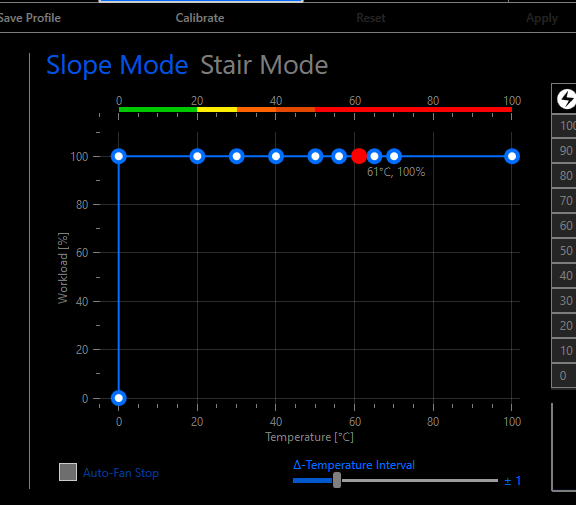
I then switched to Full Speed in Gigabyte's tool. That's when you really see how well it cools. The temperature dropped towards 61 degrees. A very good result compared with a noisy stock cooler!
Okay… we've tested with Cinebench, but what I really wanted to know was how it would perform while gaming. Where the stock cooler hit around 70 degrees with plenty of noise, I'm now seeing a maximum of 50 degrees and an average of 48 degrees, with a super-quiet system. I'm very happy with these results too, and can definitely recommend the DeepCool! What a difference.
Conclusion
Upgrading from a stock cooler, or looking for a quiet system at an attractive price? I highly recommend the DeepCool LS520 SE. With 2 fans, it's also compact enough to fit in a smaller case. All in all, an easy recommendation!
The current retail price is around EUR 98. That's very reasonable for what you get!
For more information, take a look at the product website: DeepCool LS520 SE
Verdict
Solid, with a few caveats.
Pros
- Easy installation
- Quiet and effective cooling
Cons
- Fan connection instructions could be clearer